SharePoint Online enables multilanguage support for pages within a site. When activated, you can create copies of any page in all configured languages for your site. These copies initially mirror your original page’s content in the root language. By combining Power Automate with AI capabilities, we can create an automated workflow that translates the content in these language copies.
Setup
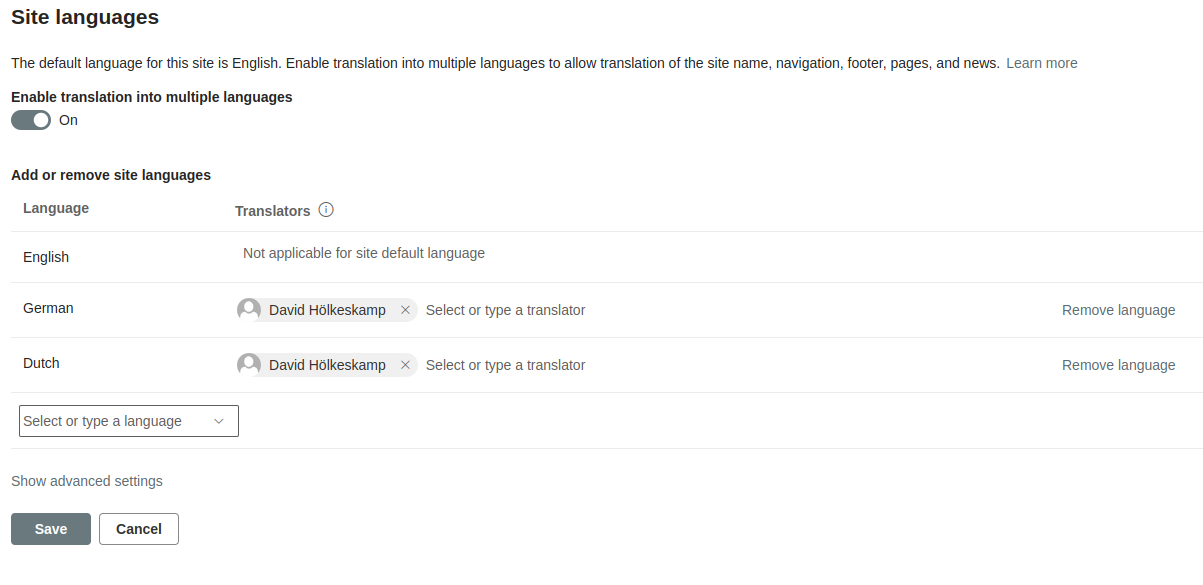
First of all we are setting up Multilanguage Support
- Navigate to site settings -> Language settings
- Enable “Enable translation into multiple languages”
- Select your required languages and assign a translator for each language. These translators should review and refine the automatic translations.
When you create a new page, you can generate translations using the translation button in the pages menu.
Clicking this button will create a copy of your page in the language-appropriate folder (e.g. SitePages/de for german translations)
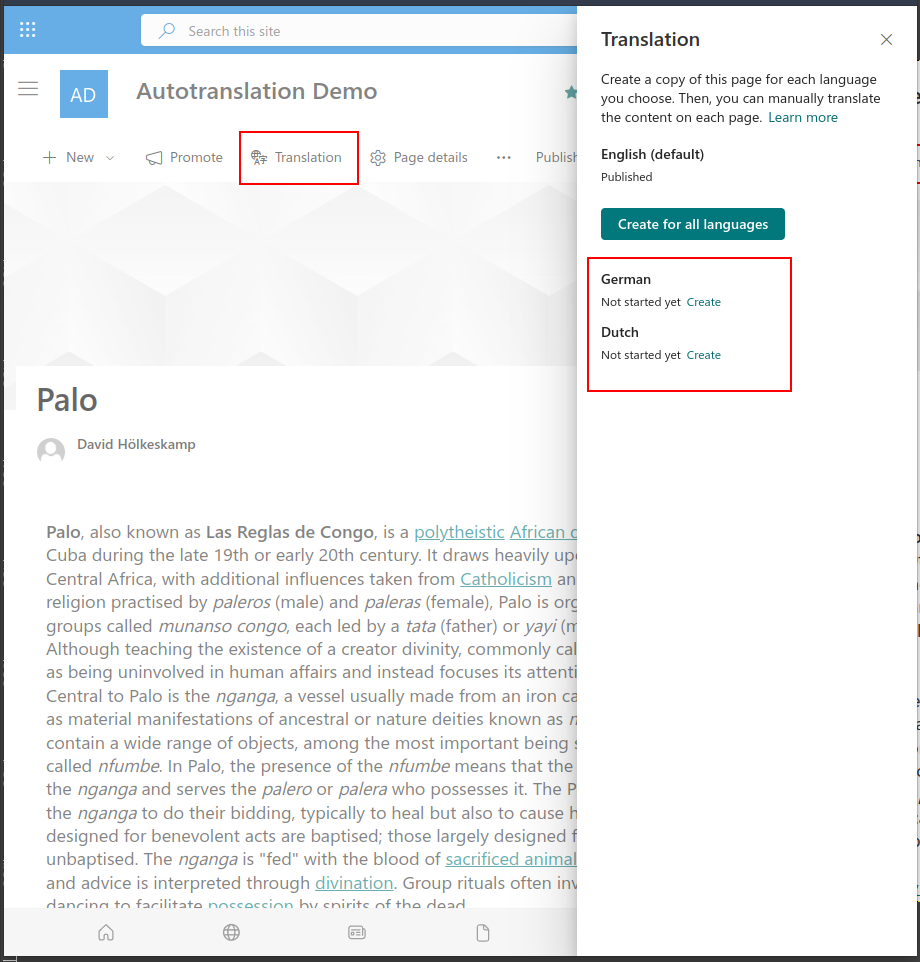
We are going to hook into that process and as soon as a new translation gets created, trigger a Power Automate Flow, that automatically translates the pages content.
Since auto-translation is not 100% accurate, the responsible person (which still gets the mail), should review the translation
Creating the flow
The trigger
Create a new flow, name it Autotranslate Pages and select When a file is created (properties only) as trigger.
Select your website and set the library as Site Pages manually as it is not selectable.
Furthermore we are adding a trigger condition, so the flow only gets triggered, when a new translation page has been created.
"Action":
When a file is created (properties only)

"Site Address":
Use the site where multilanguage support has been enabled

"Library Name":
Site Pages

"Trigger conditions":
- @equals(triggerBody()?['OData__SPIsTranslation'], true)
Getting the page content
SharePoint stores page content in a property called CanvasContent1. The SharePoint Online Page Editor structures this content using multiple controls (Canvas Controls). Each control functions like a div element, representing a block that contains webpart configuration – for example, text size settings for Text-Webparts or URLs for image webparts.
To process these controls effectively, we’ll store them in an array. This array will hold all controls and allow us to transform them in later steps of our automation.
```
"Action":
Initialize variable

"Name":
Page Controls

"Type":
Array
```
To properly translate a page we have to extract all the controls, and to extract the controls, we have to load them first.
Add a Send an HTTP request to SharePoint and configure it as follows
"Action":
Send an HTTP request to SharePoint

"Site Address":
Same as in the trigger

"Method":
GET

"Uri (use insert expression)":
_api/web/lists/getbytitle('Site Pages')/items(@{triggerBody()?['ID']})?$select=CanvasContent1
After retrieving the page content, we have to decode it. Add the following Compose action
"Action":
Compose

"Name":
Parse Page Body

"Inputs":
decodeUriComponent(body('Send_an_HTTP_request_to_SharePoint')['d/CanvasContent1'])
After decoding the content, we are going to strip the surrounding div, as this holds no information neccessary for our flow.
Add another Compose action, configured as follows
"Action":
Compose

"Name":
Remove Wrapping div

"Inputs":
slice(outputs('Parse_Page_Body'),5,sub(length(outputs('Parse_Page_Body')),6))
The next step is one more Compose action. This one splits all controls in the page content up into a nice array – makes further processing a lot easier.
"Action":
Compose

"Name":
Split Page Controls

"Inputs":
skip(split(outputs('Remove_Wrapping_div'),'<div data-sp-canvascontrol='),1)
You can combine those three Compose into just one by combining the formulas. Since PowerFX formulas are hard to read especially inside the Power Automate Editor I highly suggest keeping them separated
Due to the nature of how the split function works, all our controls are now missing the part we splitted on (<div data-sp-canvascontrol=).
So we need to add a Apply to each-Action, readd the splat-Part and store the control in our previously created array variable.
"Action":
Apply to each

"Select an output form previous step":
outputs('Split_Page_Controls')
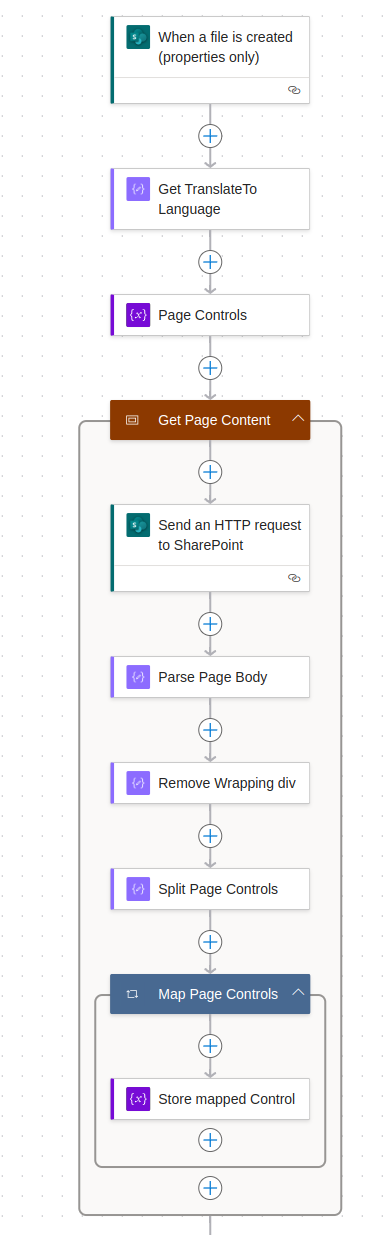
So far we are reacting to new translation pages being created, getting the info of what language we are targeting and how the page has been set up.
Your flow should look like this.
Translating
Let’s dive into the core functionality of our Power Automate flow – the translation process. While it sounds straightforward (extract text, translate it, update the page), we need several precise steps to make it work correctly.
Here’s what we’ll accomplish:
- Extract text content from page controls
- Process this content for translation
- Update the page with translated content
Let’s start by creating a new variable called “Update Page Controls” – this will be crucial for our next steps.
"Action":
Initialize variable

"Name":
Update Page Controls

"Type":
Array
The array variable will store our processed controls before we add them back to the updated page. To handle each control individually, we’ll use an Apply to each action in Power Automate. This action lets us iterate through all controls and process them one by one.
"Action":
Apply to each

"Name":
Iterate Page Controls

"Select an output form previous step":
variables('Page Controls')
To process the controls, we need to transform their data format. Each control is stored as an HTML string, but Power Automate needs a different format to work with them. We’ll follow these steps:
- Convert the HTML string to XML
- Extract the essential attribute values
- Transform the control’s configuration string into JSON format
Convert the HTML to XML
"Action":
Compose

"Name":
Convert Control To XML

"Inputs":
xml(items('Iterate_Page_Controls'))
Extract value from attribute data-sp-canvascontrol
"Action":
Compose

"Name":
Get Attribute Canvascontrol

"Inputs":
xpath(outputs('Convert_Control_To_XML'), 'string(/*/@data-sp-canvascontrol)')
Extract value from attribute data-sp-canvasdataversion
"Action":
Compose

"Name":
Get Attribute Canvasdataversion

"Inputs":
xpath(outputs('Convert_Control_To_XML'), 'string(/*/@data-sp-canvasdataversion)')
Extract value from attribute data-sp-controldata
"Action":
Compose

"Name":
Get Attribute Controldata

"Inputs":
xpath(outputs('Convert_Control_To_XML'), 'string(/*/@data-sp-controldata)')
The data-sp-controldata attribute contains JSON that defines the control’s (webpart’s) position and type on the page. To work with this information in Power Automate, we need to parse this JSON.
"Action":
Parse JSON

"Name":
Parse Controldata

"Content":
outputs('Get Attribute Controldata')

"Schema":
{
    "type": "object",
    "properties": {
        "controlType": {
            "type": "integer"
        }
    }
}
The schema is stripped down, as we only ever need the controlType-property
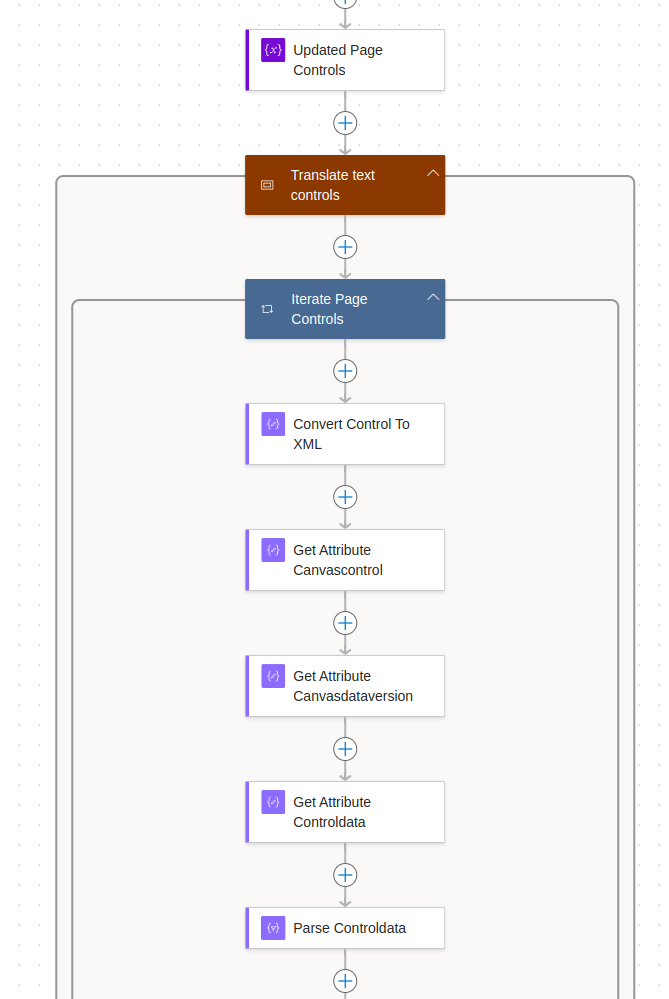
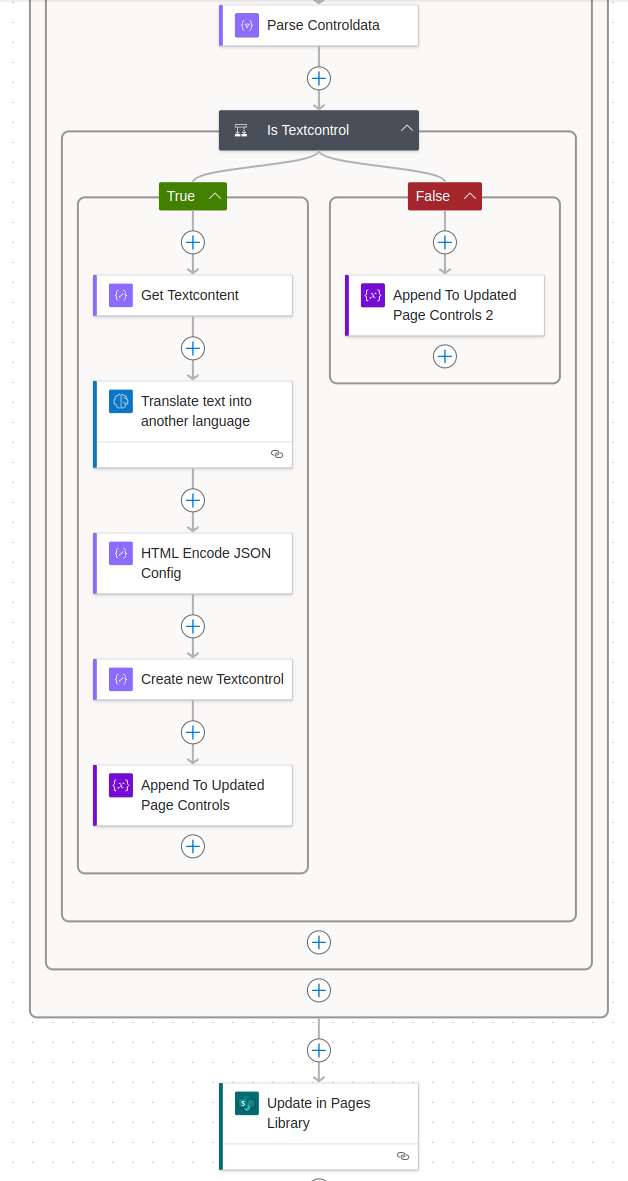
We need to identify which controls require translation and which can remain unchanged. The controlType property helps us make this decision. When controlType equals 4, we’re dealing with a text control that needs translation. We’ll add a condition to our loop:
- If controlType is NOT 4: Add the control directly to our Updated Page Controls array
- If controlType is 4: The control will need translation (which we’ll handle next)
"Action":
Condition

"Name":
Is Textcontrol

"Condition expression":
body('Parse Controldata')?['controlType'] is equal to 4
Add following action to the false branch of the condition
"Action":
Append to array variable

"Name (Property)":
Updated Page Controls

"Condition expression":
items('Iterate_Page_Controls')
The workflow preserves all non-text controls in their original order on the page. Next, we focus on translating the text controls and inserting them back into the Updated Page Controls array. To begin the translation process, add an action within the true branch of the condition to extract the content from the text control.
"Action":
Compose

"Name":
Get Textcontent

"Inputs":
xpath(outputs('Convert_Control_To_XML'), 'string(/)')
Now we are finally at the point, where AI comes into play. Translating the text is done by a model provided by Microsoft.
Add the following action to the flow
"Action":
Translate text into another language

"Name":
Translate text into another language

"Translate from":
Detect automatically

"Text":
outputs('Get Textcontent')

"Translate to":
substring(triggerBody()?['OData__SPTranslationLanguage/Value'], 0, 2)
With the translated content at our hands, we need to recreate the text control, add it to Updated Page Controls and finally update the page.
The first step in recreating the text control is HTML-Encoding the JSON configuration. By reading the configuration, Power Automate automatically decodes the JSON but when recreating the control, the JSON config will NOT be automatically encoded, which will lated on create issues with the page.
Add the following action
"Action":
Compose

"Name":
HTML Encode JSON Config

"Inputs":
replace(replace(replace(replace(replace(outputs('Get_Attribute_Controldata'),
'{', '{'),
'}', '}'),
':', ':'),
'"', '"'),
',', ',')
The next step is putting it all together as a new text control
"Action":
Compose

"Name":
Create new Textcontrol

"Inputs":
concat('<div data-sp-canvascontrol="', outputs('Get_Attribute_Canvascontrol_'), '" data-sp-canvasdataversion="', outputs('Get_Attribute_Canvasdataversion'), '" data-sp-controldata="',outputs('HTML_Encode_JSON_Config'),'"><div data-sp-rte="">' , outputs('Translate_text_into_another_language')?['body/responsev2/predictionOutput/text'] , '</div></div>')
And finally add it to Updated Page Controls
"Action":
Append to array variable

"Name (Property)":
Updated Page Controls

"Condition expression":
outputs('Create new Textcontrol')
At this point, our loop through the controls is complete. We’ve preserved all non-text controls and updated the text controls with their translations. The final step is to update the page in the SharePoint pages library using an HTTP request action.
"Action":
Send an HTTP request to SharePoint

"Site Address":
Same as in the trigger

"Method":
POST

"Uri (use insert expression)":
_api/web/lists/getbytitle('Site Pages')/items(@{triggerBody()?['ID']})

"Headers":
- Content-Type: application/json
- IF-MATCH: *
- X-HTTP-METHOD: MERGE

"Body":
{'CanvasContent1':'<FORMULA-HERE>'}

Add the following formula in place of <FORMULA-HERE>:
replace(concat('<div>',join(variables('Updated Page Controls'),''),'</div>'), '''', '\''')
The replace function escapes single quotes (') in the new text control, as unescaped ones will lead to errors while running the update.
Thats it – the flow should look like this now.
All that is left to do is testing.
Create new pages, add some text (and some other web parts) and create some translation pages.
The new pages should contain the translated text as well as all other web parts from the root-page.
Leave a Reply